
Prisma3D 3D Modeling, Animation, Rendering
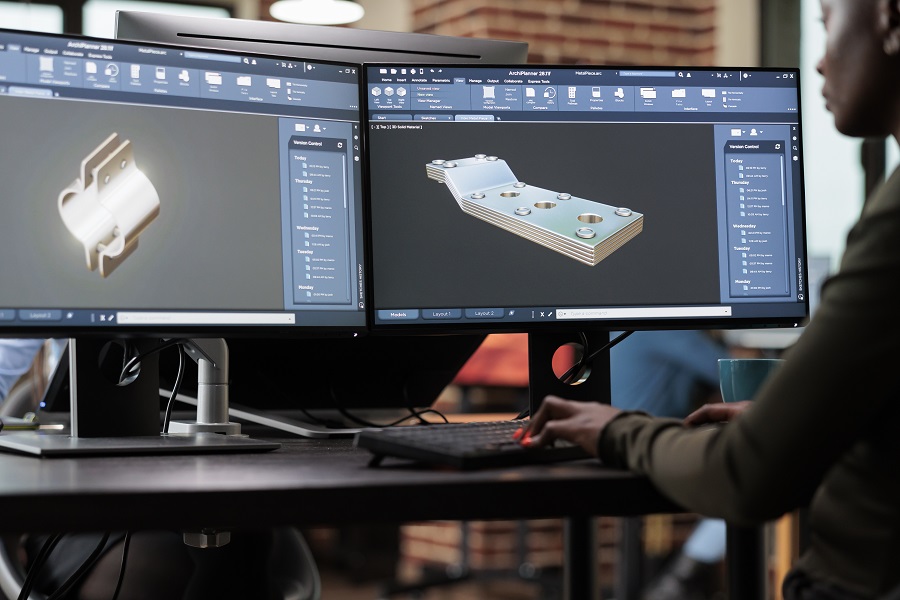
3D content creation has historically been gated behind expensive hardware and software with steep learning curves. Applications like Blender or Maya offer incredible depth but often intimidate beginners. Prisma3D bridges this gap by offering a lightweight, accessible, yet surprisingly robust 3D suite originally designed for mobile devices. For Windows PC users, running this application creates a unique workflow that combines the simplicity of mobile-first design with the precision of a desktop environment. This article explores the utility of Prisma3D, breaking down its three core pillars—modeling, animation, and rendering—and explaining how to set it up on your computer.
A Complete Creative Studio
Prisma3D is not a game; it is a fully functional production tool. It serves as a pocket-sized studio that handles the entire pipeline of 3D creation. While it was built to run on Android and iOS, bringing it to the PC platform unlocks a higher level of precision. The interface is streamlined to avoid the "button clutter" found in professional desktop software, making it an ideal starting point for users interested in game design, motion graphics, or 3D art without the intimidation factor.
Modeling Tools and Workflow
The foundation of the application lies in its modeling capabilities. Users start with primitive shapes—cubes, spheres, planes, and cylinders—and modify them to create complex structures. The app supports a full mesh workflow, allowing you to manipulate individual vertices, edges, and faces. This is where the PC advantage becomes obvious. manipulating a complex mesh on a touchscreen can be imprecise, but using a mouse allows for exact selection and modification of geometry.
Prisma3D includes tools for extrusion, cutting, and scaling, which are standard in industry-level software. It also supports 3D text creation, making it useful for designing logos or intro videos. For those who prefer to bring in external assets, the app allows importing major file formats like .obj, .fbx, and .gltf. This means you can model in another program or download assets from the web and use Prisma3D specifically for the next steps in the pipeline: animation and rendering.
Animation and Rigging Systems
Perhaps the most impressive feature for a lightweight app is its rigging and animation system. Rigging involves creating a skeleton for a 3D model so it can move. Prisma3D simplifies this process significantly. You can add bones to your model and use the skinning feature to bind the mesh to the skeleton. While auto-rigging features are available, manual weight painting lets you refine how the skin stretches when bones move.
Once rigged, the animation workspace uses a classic timeline and keyframe system. You set the position of your character at one point in time, move the timeline slider, and adjust the character's pose. The software automatically interpolates the movement between these frames. On a PC, managing the timeline is much smoother, giving you a broad view of your animation curves and easier control over timing and easing. This makes it a capable tool for creating short films, game assets, or educational visualizations.
Rendering and Lighting
The final stage of production is rendering, where the software calculates lights, shadows, and textures to output a video or image. Prisma3D supports various light types, including point lights and directional lights, allowing for dramatic scene setups. You can adjust the color, intensity, and shadows to create mood and depth.
The rendering engine is optimized for mobile hardware, which means it runs incredibly fast on a standard Windows PC. It supports output resolutions up to 4K, ensuring your final video looks crisp. The camera tools allow you to animate the viewport itself, creating cinematic pans and zooms that add production value to your projects.
Why Use a Mobile App on PC?
You might wonder why one would use an Android app on a PC when native desktop applications exist. The answer is accessibility and speed. Native desktop 3D software often requires memorizing dozens of hotkeys and navigating complex menus. Prisma3D offers a "pick up and play" experience. It is perfect for rapid prototyping, learning the basics of 3D space, or creating quick animations for social media. The PC environment simply enhances this by providing a larger canvas and better input devices, removing the frustration of your finger blocking the screen while you work.
Installation and Setup on Windows
Since Prisma3D is a mobile application, it does not have a native Windows .exe installer. To run it on a PC, you must use an Android emulator. An emulator creates a virtual Android tablet on your computer, allowing you to run mobile apps seamlessly with mouse and keyboard support.
The process involves downloading a reliable emulator, signing in with your Google account, and installing the app within that virtual environment. This method provides the best of both worlds: the lightweight, intuitive software of a mobile app backed by the processing power and peripherals of your PC.
For a detailed guide on how to get this running and to access the necessary files, you can Download Prisma 3D for PC to get started. Once installed, you can map your keyboard keys to simulate touch gestures, giving you a highly efficient workflow for your 3D projects.